Developer workflows
Meet Pip: a desk companion for your coding breaks
Pip is a small companion that sits above your Mac's Dock, shows how long you have been coding, brings your break reminders, and joins short guided breaks.
The short answer
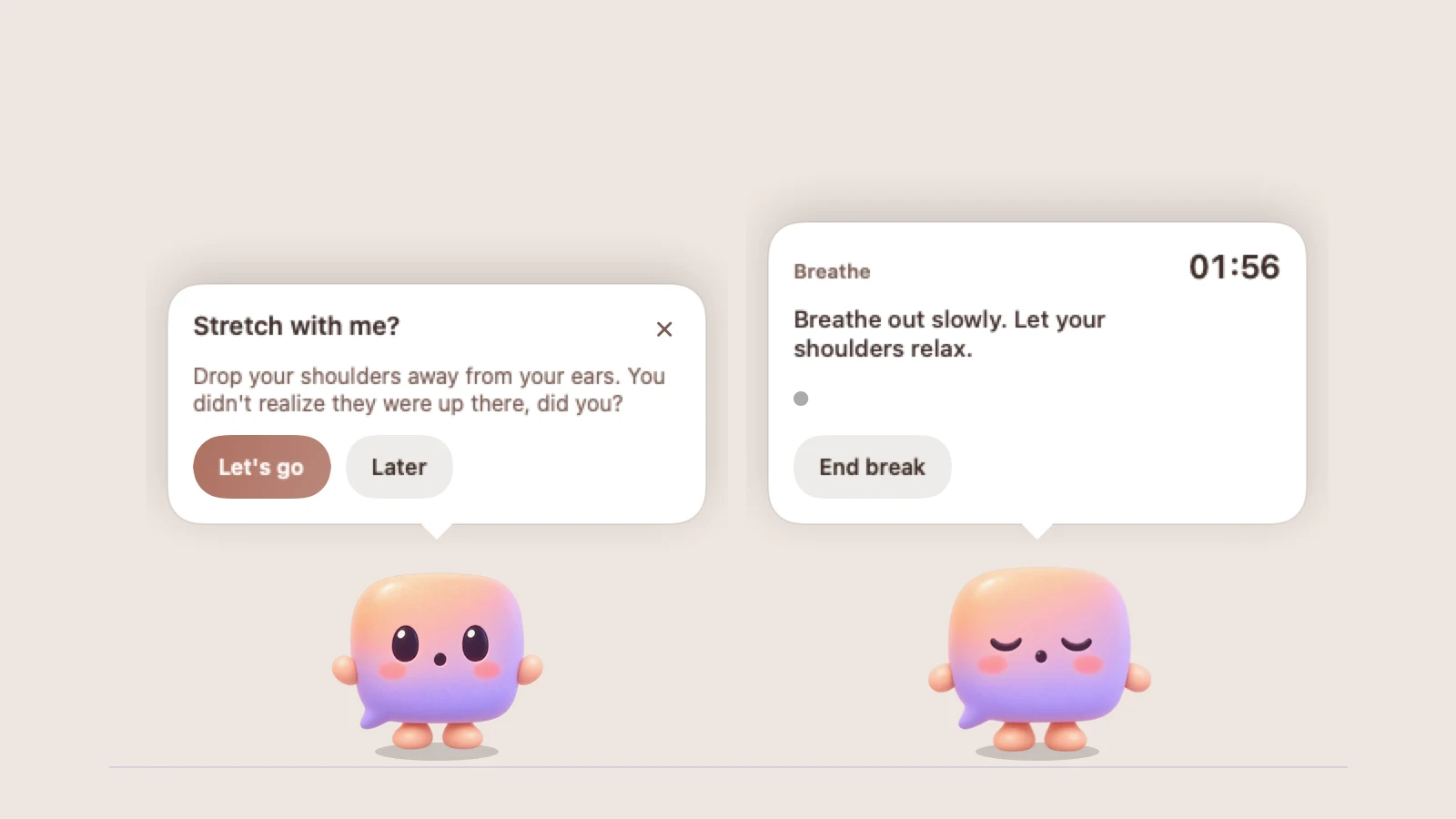
VibePause 1.4 adds Pip, an optional desk companion. It mirrors your coding session, delivers nudges in a speech bubble, and breathes, rests its eyes, and stretches through guided breaks with you. It never takes focus from your editor and stays quiet when you need to concentrate.
We make VibePause. This article describes a feature in our own app, VibePause 1.4.
Why a companion, not another notification
Break reminders usually arrive as one more alert on a screen already full of them. It is easy to dismiss a banner without reading it, and a session timer in the menu bar only helps if you remember to look at it.
Pip takes a different approach. It is a small character that stands just above your Dock while you work. Its pose follows the length of your coding session, so you can notice a long stretch at a glance, and when VibePause has a reminder for you, Pip is the one who brings it.
What Pip does during a coding day
Pip never decides anything on its own. Every pose and line comes from what VibePause already knows: whether you are in a tracked app, how long the session has run, and whether a reminder or break is happening.
| Moment | What Pip does |
|---|---|
| You are coding | Stands calmly, blinks, and may stroll a little along the bottom of the screen |
| Four hours into a session | Looks tired and checks in once: “Four hours in. How are your shoulders?” |
| Six hours in | Looks weary and offers water, a stretch, or a short walk, once |
| A reminder arrives | Hops and shows it in a speech bubble with Let's go, Later (30 minutes), and dismiss |
| A guided break is running | Breathes at the guide's pace, rests its eyes, or stretches, with the countdown in its bubble |
| The break is done | Celebrates briefly: “Nice reset.” |
| A Focus Block is running | Puts on headphones and stays still and silent |
| You step away | Naps until you come back |
One reminder, in one place
When Pip is on screen and set to react to reminders, it delivers the nudge instead of the floating banner, so each reminder appears once rather than twice. The bubble carries the reminder's own text, and Let's go starts the break that fits it: a stretch for a posture nudge, an eye rest for an eye nudge, or a short breathing guide.
You can also click Pip for a quick breather, eye rest, or stretch, or right-click it for its menu. None of this opens the VibePause window.
Designed to stay out of your way
A companion that interrupts your typing would defeat the point, so Pip is built to be easy to ignore until you need it.
- It never takes focus from your editor. Keystrokes keep going where you were typing.
- Clicks pass through everywhere except Pip itself and its bubble.
- It stays out of full-screen apps and presentations.
- It is silent during Focus Blocks and Quiet Hours, and holds still when Reduce Motion is on.
- You can drag it anywhere along the bottom of the screen, pick a size, tell it to stay in one place, or tuck it away.
A small voice without words
Pip has short synthesized sounds for moments like saying hello, bringing a reminder, or finishing a break. They contain no words, so they sound the same in every language. Choose Babble, Bloop, Hum, or the default Mix, set the volume, or mute Pip from its menu. Pip's sounds have their own switch, separate from the app's reminder sounds.
How to turn Pip on
Pip is optional and off until you switch it on. It is part of VibePause 1.4 and needs no extra purchase.
- Update VibePause to version 1.4 from the Mac App Store.
- Open the VibePause menu bar item and turn on Show Pip on desktop.
- Right-click Pip and choose Pip settings… to pick a size, a voice, and whether Pip wanders or reacts to reminders.
- To hide Pip again, right-click it and choose Tuck Pip away, or turn the switch off in the menu bar.
What Pip is not
Pip does not read your code, watch your screen, or collect anything beyond the session information VibePause already uses. It reflects the same foreground-app and idle signals as the rest of the app.
It is also not a health or medical tool. Like VibePause's reminders, Pip offers general, optional prompts to pause. If you have symptoms or specific needs, professional advice matters more than any reminder app.
Sources and further reading
External product information checked 2026-09-24. Features and prices can change.